![[IMG]](https://lh3.googleusercontent.com/GW2ur41p6ifn3r8vtc5LlzqufgOjCisgCq4ITq1kS4VkVj2cagjA6OaHujdvCEIWHU5m=h310-rw)
Game: Mobile Legends: Bang Bang
Version: 1.1.88.1631
Playstore: Mobile Legends: Bang bang - Android Apps on Google Play
Root: YES
Hacks :
1. High Damage/1 Hit Kill
2. God Mode/Infinite Health
*High Ban risk, recommend you to create new account for this.
Requirements:
1. Rooted Device
2. Game Guardian
God Mode/Infinite Health
1. Run mobile legends and exit game by pressing home button, then run game guardian. run game again from system tray. and select first process :![[IMG]](https://i.imgur.com/Xqb2KUa.png)
2. Go to battle. look at you current health![[IMG]](https://i.imgur.com/wVjQFgA.jpg)
3. Search for you health as Dword![[IMG]](https://i.imgur.com/nhwMfbE.png)
4. go back to game, find monster and let him attack until you health goes down and run away from him![[IMG]](https://i.imgur.com/W4Gpowd.jpg)
5. And here you health has changed![[IMG]](https://i.imgur.com/PH3QpPD.jpg)
6. Then search for new value of you health, if you find more than 5 values then edit/change all values and dont forget to tick on Freeze becuase need to keep/maintain your new health![[IMG]](https://i.imgur.com/tPUOwte.png)
7. Here you new Health![[IMG]](https://i.imgur.com/qA5Wg1w.jpg)
High Damage/1 Hit Kill
1. Go to battle and look at you physical attack![[IMG]](https://i.imgur.com/Maan75N.jpg)
2. Search for you current physical attack value as Dword![[IMG]](https://i.imgur.com/9xJE6Or.png)
3. Tap on you money/cash to navigate into a shop, buy attack![[IMG]](https://i.imgur.com/keQ5jin.png)
4. Find and attack you enemy until they attack you back, and run away from them and check again you physical attack has changed![[IMG]](https://i.imgur.com/ZzbyfRX.jpg)
5. Now Search for new physical attack value![[IMG]](https://i.imgur.com/wO5JjxP.png)
6. Edit Selected to change all values![[IMG]](https://i.imgur.com/xHkN79q.png)
7. Change to any values you want (recommend from 600-1000 to avoid get ban) and dont forget to tick freeze to keep/maintain your current physical attack![[IMG]](https://i.imgur.com/QLRD1R9.png)
8. Here you new physical attack, kill you enemies and get ready to get banned ![[IMG]](https://i.imgur.com/2aGLrQX.jpg)
For link youtube, cooming soon.
Tampilkan postingan dengan label Android. Tampilkan semua postingan
Kamis, 27 Juli 2017
Tutorial Cheat Mobile Legend
Sabtu, 22 Juli 2017
Cara Menambah Followers/Likes/Comments Instagram Terbaru 2017
Assalamualaikum wr wb.
Blogku - Hallo Guys kali ini saya memberikan tutorial menambahkan followers secara gratis, makin kesini followers instagram sangat diperlukan entah untuk pamer, jualan, dll. bukan hanya followers aja yang bisa kita dapatkan likes dan comments juga bisa dapatkan secara cuma cuma disini, kita disini bisa gunakan aplikasi atau website untuk menambahkan, disini saya punya 2 website ampuh penambah followers/likes/comments dan kita bisa gunakan secara gratis sekali lagi saya ucapkan wkaka, beda dengan website website lain yang hanya membataskan followers, likes atau comments.
*Fitur Website.
1. Followers Up to 400/Jam
2. Likes Up To 250/Jam
3. Comments Up To 500/Jam
Oke langsung aja.
1. Siapkan satu buah akun instagram yang sudah di pasangkan email(HARUS)

2. Lalu buka website panelnya http://rifkiisaputra.net/
3. Lalu klik login
4. Masukan username dan password <b>(BUKAN PHISING!)

- kalo keluar seperti ini jangan panik ini hanya perlu verifikasi instagram, sekarang buka instagramnya lalu refresh.

- Klik ini adalah saya untuk mengizinkan akun kalian login ke website tersebut, dan coba login lagi ke website followersnya


6. Sekarang saya mau coba nambah followers, klik START SENDING dan tunggu beberapa saat

- Nanti Hasilnya akan seperti ini.(Sengaja di kecilin soalnya banyak ampe kebawah :v)


7. Sekarang kita coba likenya, tinggal klik send liker aja


- kalo sudah langsung logout saja.
Oke!! Mudah bukan, jangan lupa kalian logoutin dari webiste itu. Terima Kasih.
Wassalamualaikum wr wb.
Kamis, 13 Juni 2013
Install Android 4.0 on virtual box

Hello GreenHackerz Readers.....................
The mobile smartphone and tablet industry seems to have a very prominent divide, with a lot of consumers having their favorite operating system and choosing to stick to hardware which is powered by their chosen OS. Obviously fans of Apple’s iOS use the iPhone and iPad devices, whereas Android lovers have a wide range of hardware to choose from due to the fact that the OS is available to multiple manufacturers.But what happens if you are a die hard fan of iOS, or Windows Phone but you still want to sample the delights that Android Ice Cream Sandwich has to offer? After recently getting my first taste of Android, I am severely tempted to shell out for a second device so I can have the benefits that both provide. For those that can’t, or won’t, purchase a second device then why not run Android 4.0 in virtualization on your desktop or laptop in order to see the Ice Cream Sandwich experience first hand? Android 4.0 is an operating system in its own right, but instead of running on a dual boot setup, we install and run ICS within a free of charge virtualization application known as VirtualBox. VirtualBox runs like any other application or program on your machine, but offers the benefits of being able to install a secondary OS within it which can be invoked quickly by the user. For all those die hard iOS and Windows Phone fans out there, this is a perfect way to experience the delights of Android.
Are you ready for a whirlwind journey down Ice Cream Sandwich lane? Buckle in and follow the simple steps below.
1. Head over to the official Oracle VM VirtualBox site and download the relevant VirtualBox binary for your computers operating system (Windows/Mac OS X/Linux/Solaris).
2. Find the saved location of the downloaded VirtualBox binary and install as you would with any other native application making sure to follow all on screen prompts and instructions.
3. Head on over to the VMLite website and download a copy of the Ice Cream Sandwich which has been preconfigured for virtualization and features seamless mouse support for navigation. The download weighs in at 89MB in size so may take a while to download depending on your connection.
4. Locate the downloaded "VMLite-Android-v4.0.4"file and extract the contents from within.
5. Once the VMLite-Android-v4.0.4 file has been opened, locate a file from within the archive called ‘VMLite-Android-v4.0.4.vbox‘ which as you can tell by the file extension is a pre configured VirtualBox file.


7. When the boot menu is presented in VirtualBox, press ‘start‘ on the top toolbar and then if required select the ‘Android Startup from /dev/sda‘ option.

8. All steps are complete. Android 4.0 ICS should now be booting up allowing you to enjoy that Android goodness.
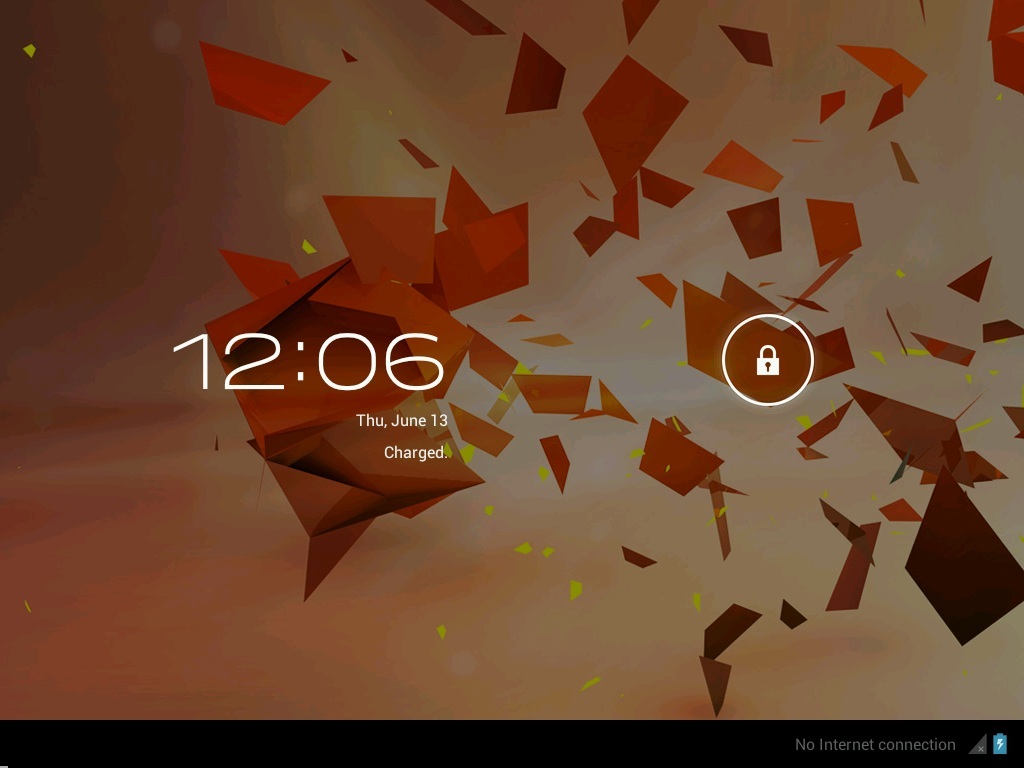
Windows and Linux users may find that an alternative, specific version Android 4.0 may be required, which can be found by visting the Android-x86 page. The performance of the Android ICS virtual installation will obviously not be as smooth as intended on an actual device built for purpose, but it does give a feel of the OS with apps being able to launch as well as widget customization.
I hope you all learned & enjoyed the article on installing android in virtual box.
espérons qu'il vous plaira.
Enjoy the article.

Langganan:
Postingan
(
Atom
)


